

Roaming charges can turn a great trip into an expensive lesson. One notification from your carrier and suddenly you’re rationing data like it’s a limited resource, avoiding Google Maps, skipping check-in instructions, and praying the airport has decent connection. Carrying a free Wi-Fi map on your phone changes that equation, and it costs nothing to get started.
WiFi Map is an app that does a lot more than point you toward the nearest coffee shop signal. Tripiefly put this guide together so you can learn how everything works, from passwords shared by a global community to offline maps you can pull up without a single bar of service. Keep reading to see how this app can save you from situations where losing connection can cost you more than convenience.

Free Wi-Fi map: how to find internet without roaming fees
WiFi Map (Android | iOS) is a community-powered app that gives you access to hotspots worldwide, with passwords contributed by people who’ve already connected from those spots.
The app covers restaurants, hotels, transit hubs, and public spaces across hundreds of countries, so you’re never left without an option regardless of where your trip takes you.
The free Wi-Fi map updates in real time as the community adds new hotspots daily, so the information you’re working with reflects what people are connecting to right now.
Features available in the app for travelers
- Community-shared passwords: users contribute login credentials for hotspots, so you’re connecting with information that’s been tested and verified by the community;
- Offline maps: download entire regional maps before your trip so you can locate hotspots, restrooms, and fountains without needing an active connection;
- Wi-Fi speed test: check your connection’s download and upload speeds before committing to a hotspot, so you know exactly what you’re working with;
- Wi-Fi analyzer: scan nearby networks and measure signal strength to find the most reliable connection available in your immediate surroundings.
Does WiFi Map work in bus stations, airports, and beaches?
The free Wi-Fi map covers a surprisingly wide range of locations, and public transport hubs are some of the most well-documented spots in the database.
Airports tend to have strong coverage on the app since they’re high-traffic areas where community members connect and update network details on a regular basis.
Beach towns and more remote spots are a different story, but the community is active enough that even less obvious locations show up with usable hotspot data.
Download offline maps before you leave home
Downloading your destination’s map before departure means you’ll have access to hotspot locations the moment you land, without burning through roaming data to load the app.
The free Wi-Fi map offline feature lets you pull up an entire region’s worth of hotspot data, and having that ready before you board makes the first hours of any trip a lot less stressful.
Offline maps also include restroom locations, drinking fountains, and ATMs, so the download does a lot of heavy lifting beyond just keeping you connected while you’re out exploring.
Step-by-step guide to using the app on international trips
Getting WiFi Map (Android | iOS) running on your phone takes a few minutes, and the setup process is simple enough that you’ll be searching for hotspots before your next flight lands.
The app is available on both Android and iOS, and once you’ve created an account, you get 150 bonus points added to your profile straight away as a welcome reward.
Registration unlocks access to the full community database, and that’s where the free Wi-Fi map really starts pulling its weight as a travel tool you’ll keep coming back to.
Step 1: download and install the app for free
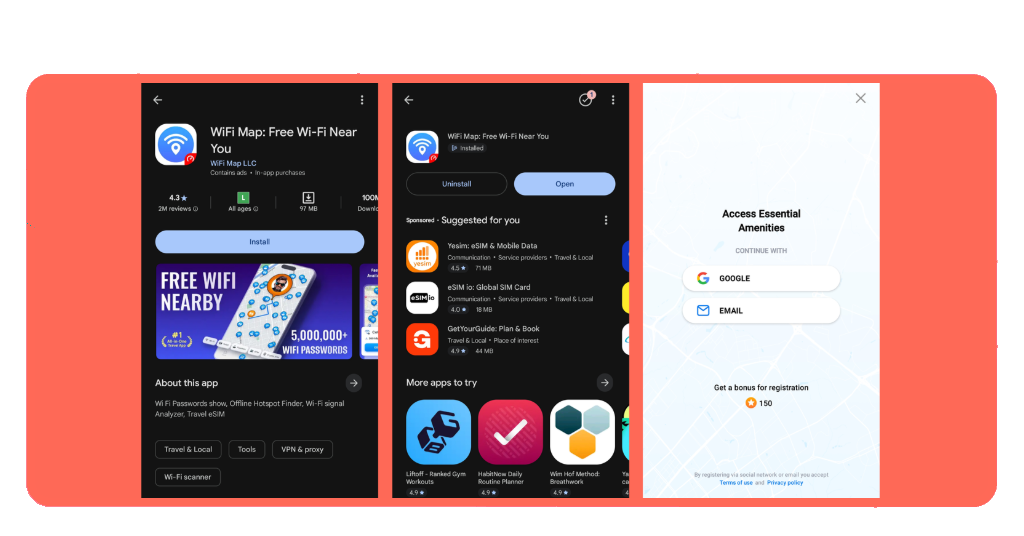
Unlock your phone, go to the Google Play Store or the App Store, search for ‘WiFi Map’, and download the app. It weighs around 97 MB on Android and 417.4 MB on iOS.
Once the download finishes, open the app and choose how you’d like to register. You can sign in with your Google account or use an email address to create a profile.
After registration, the app asks for your location to pull up hotspots in your area. Allowing that permission is what makes the map actually useful from the start.
Step 2: search for hotspots near your location
The free Wi-Fi map shows you every available hotspot around your current position, and you can filter results by category to zero in on the type of connection you need.
Tap any pin on the map, and you’ll see the network name, the community-shared password, and details like the last recorded signal and how many people have connected there.
The app also shows you how far each hotspot is from where you’re standing, so you can decide if it’s close enough to walk to before you start moving.
Step 3: explore the community tools and earn points
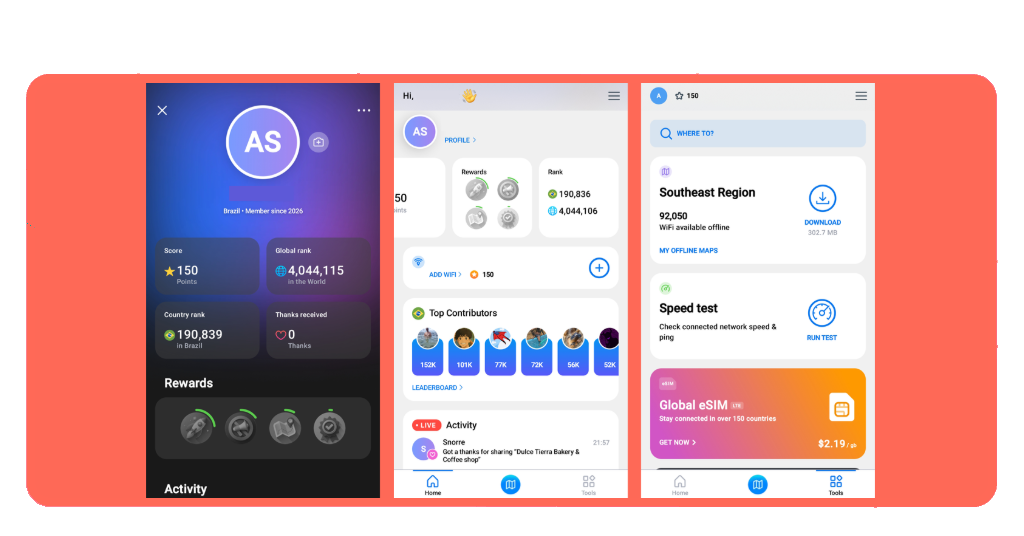
Once you’ve connected to a network, the app invites you to run a speed test and share the results, which adds useful data to the community and builds your contributor score.
Every hotspot you add to the map or verify earns you points that push your ranking up, and the free Wi-Fi map leaderboard shows where you stand against contributors globally.
The ‘Tools’ section is worth a look, too, since it’s where you’ll find offline map downloads, the signal analyzer, and extras like the currency converter and world clock, all in one place.
Tips on how to connect safely to public networks
Public Wi-Fi is everywhere, and while that’s convenient, connecting without a second thought can expose your device to risks that are completely avoidable with a few simple habits.
The good thing about using a free Wi-Fi map is that the community vetting process already filters out a lot of unreliable networks before you even tap connect on your screen.
That said, the app can’t do everything for you, and there are a few personal practices worth building into your routine whenever you’re connecting to a network you’ve never used before.
Turn off auto-connect on your device
Most phones are set to automatically join known network types, and that setting can connect you to a suspicious network before you’ve even had a chance to check what it is.
Going into your Wi-Fi settings and disabling auto-connect takes about thirty seconds, and it puts you back in control of every network your phone joins while you’re traveling abroad.
This is especially relevant in busy places like train stations and shopping centers, where multiple networks with similar names can confuse your device into joining the wrong one.
Stick to hotspots with recent community activity
The free Wi-Fi map shows you the last recorded signal date and the total number of connections for every hotspot, and those two details tell you a lot about reliability.
A network with recent activity and a solid connection count is a much safer bet than one that hasn’t been verified in months and has almost no community data attached to it.
If the hotspot details look thin or outdated, scroll the map a little and find one with a stronger track record before committing your device to an unknown network.
Run a speed test before sharing sensitive data
The free Wi-Fi map has a built-in speed test tool, and running it before you do anything sensitive online is one of the easiest ways to check if a network is stable enough.
A low upload speed or a high ping reading can signal that the network is overcrowded or unstable, which isn’t the connection you want when logging into accounts or making payments.
If the results look off, it’s better to wait until you find a network that performs well rather than risk a dropped connection at the worst possible moment during your session.
Free Wi-Fi map vs. travel eSIM: which option saves more?
Two of the most practical ways to stay connected abroad without paying roaming fees are hotspots and travel eSIMs, and both have real advantages depending on how you travel.
A free Wi-Fi map costs you nothing upfront and gives you access to a massive database, while a travel eSIM gives you mobile data that works anywhere without needing a hotspot nearby.
Choosing between them comes down to your trip style, your destination, and how much you rely on having a connection available at every single moment throughout your day.
WiFi Map keeps your data bill at zero
The app is completely free to download and use, and connecting to community-shared hotspots means you can browse, message, and navigate without spending a single dollar on mobile data.
For trips where you’re spending most of your time in cities, cafes, hotels, and transport hubs, the hotspot coverage is dense enough that you rarely find yourself without a viable option nearby.
The premium subscription at $11.99 a month unlocks extra features, but the free version gives you enough access to stay connected throughout a well-planned international trip.
Travel eSIM gives you coverage without hotspot hunting
The free Wi-Fi map works best in areas where the community is active, but there are destinations and situations where hotspot coverage gets thin, and you need a backup plan.
A travel eSIM gives you a data connection that follows you everywhere, whether you’re on a highway, in a national park, or somewhere the community hasn’t mapped yet.
WiFi Map actually offers its own eSIM starting at $2.19 per GB, covering 70+ countries with 4G and LTE speeds, so you don’t need a separate app or provider to get it sorted.
Pick the right tool for your trip type
The free Wi-Fi map is a solid choice for budget trips, city breaks, and any itinerary built around places where public Wi-Fi is already part of the infrastructure.
If your trip takes you off the beaten path or you need a reliable connection for work calls and video, pairing the app with a travel eSIM gives you a much more complete setup.
The two options aren’t in competition, and using both together means you’re covered whether you’re sitting in a well-connected airport lounge or hiking somewhere with no hotspot in sight.
Stay connected wherever the trip takes you
WiFi Map gives you a real shot at cutting your travel costs without giving up the convenience of staying connected wherever your trip takes you.
In this guide by Tripiefly, you got a full breakdown of every feature that makes the free Wi-Fi map a reliable travel companion, so you can hit the road without worrying about your data bill.
Keep browsing Tripiefly for more guides on staying connected abroad, and make every trip from here on out a little easier to plan and a lot cheaper to pull off.